Coming Soon | Clearer Contract Checks. Better Follow-through.
Release 6.3 brings six improvements to contract review, deliverable tracking, SLA follow-up and everyday work, with rollout planned for November 22.
- Gold Standard Comparison: Compare a contract against your company’s gold standard and see where terms are not aligned.
- Clearer deliverable review: The extraction screen now separates Pending Creation and Pending Action, and Delete becomes Reject.
- SLA escalations: Send up to four escalation emails per SLA breach to the assignee’s manager and additional recipients.
- Show items On Hold: A new toggle, off by default, keeps paused deliverables out of the main list.
- Attachment preview: Open PDF and image files shared in Collaborate in a new browser tab without downloading them.
- Internal helpdesk email: Admins can set the support address shown in error messages.
- Rollout: Sunday, 22 November 2026, 4:30 to 8:00 AM UTC, inside the regular weekly maintenance window.
Knowing what a contract says is part of the job. Your team also needs to spot terms that differ from company standards, review what AI extracts, and make sure missed deadlines reach the people who can follow up.
Release 6.3 brings six improvements to support that work. The updates give teams clearer ways to review contract information, keep attention on active deliverables, and handle everyday tasks with fewer interruptions.
In this release: Contract comparison · Deliverable review · SLA escalations · On Hold filter · Attachment preview · Support settings
Know what needs your review
See where contract terms differ from your company standard
A contract can look familiar while containing wording that differs from your organization’s preferred position. Identifying those differences helps legal, risk, and category teams decide where to spend their review time.
Gold Standard Comparison compares a contract against your company’s gold standard and highlights where terms are not aligned. You can review the findings with the contract available for reference, then decide whether a difference needs further attention.
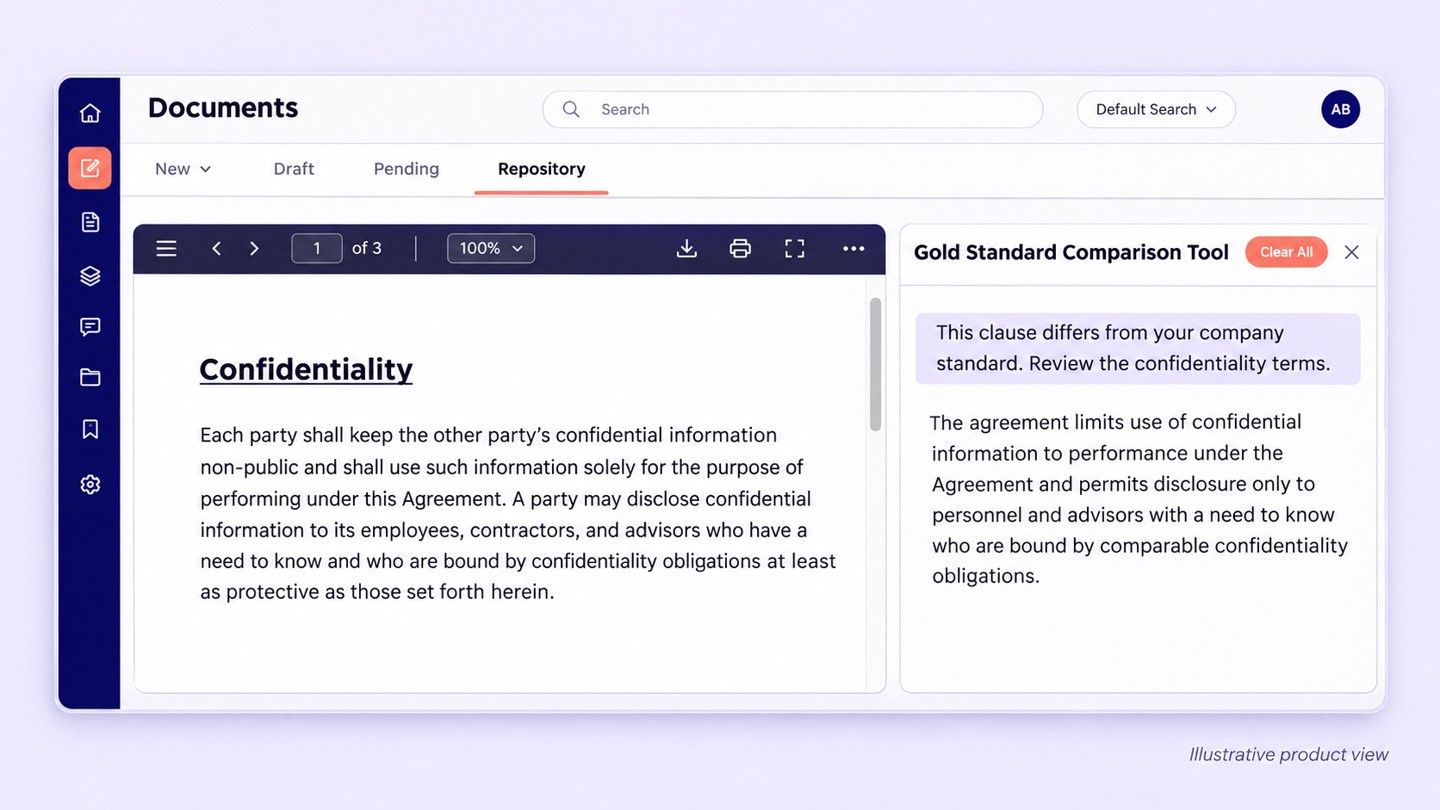
For example: When reviewing a confidentiality agreement, use the comparison to focus on terms that differ from your company standard. Your team can then assess whether those differences are acceptable or need discussion.
Where to find it: Open the AI menu on the contract details page and select Gold Standard Comparison. The product panel is labeled Gold Standard Comparison Tool.
The findings support your review. Your team remains responsible for evaluating the terms and deciding what action to take.
Review what AI finds before moving forward
Extracted deliverables are most useful when you can review them clearly and decide what should happen next. The redesigned extraction screen gives that review process a cleaner structure.
The layout now separates Pending Creation and Pending Action into distinct tabs. The action previously labeled Delete becomes Reject, making the wording clearer when you review AI-extracted content.
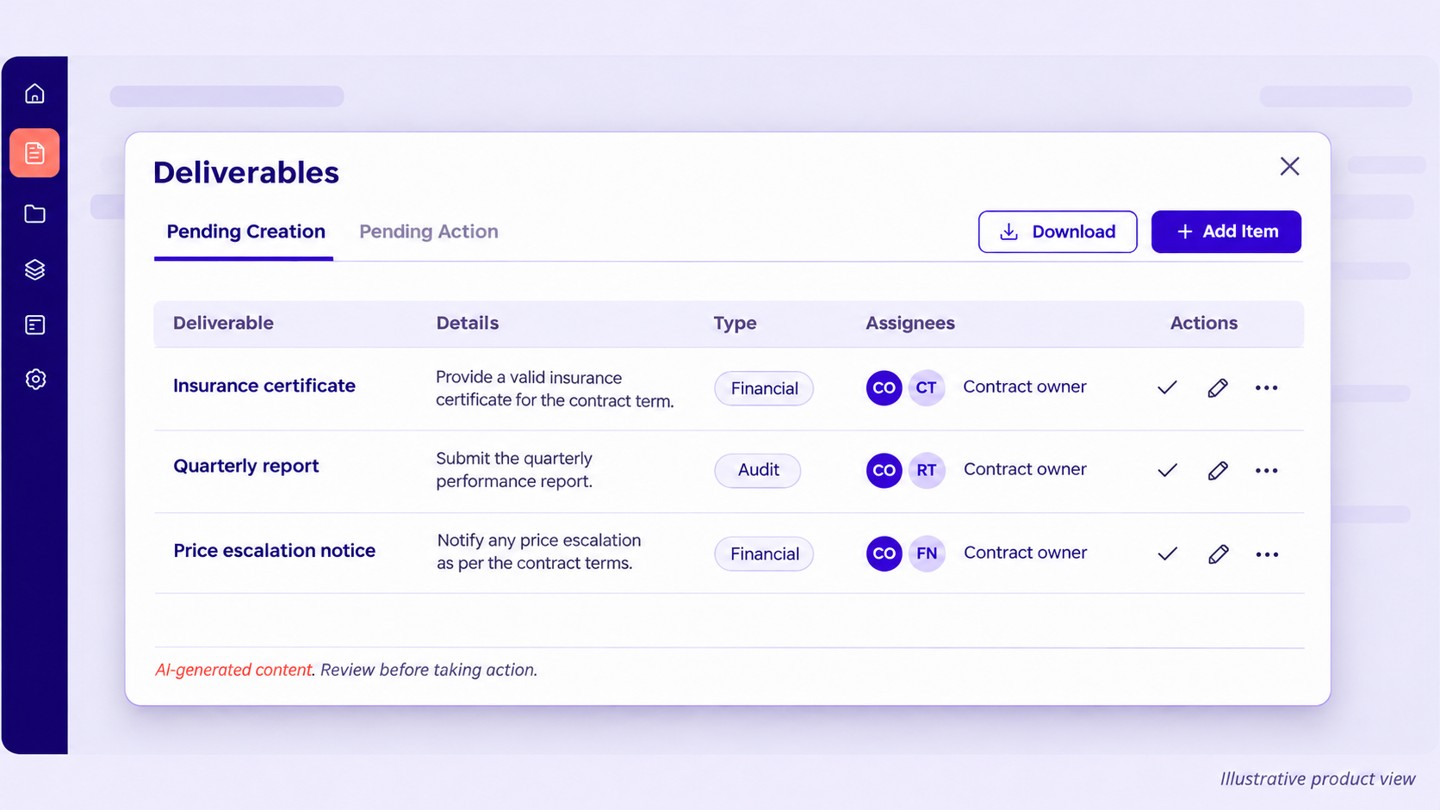
An AI disclaimer in the extraction pop-up also reminds users to review the output. Together, these changes make it easier to see what needs attention while keeping your team in charge of accepting or rejecting the extracted content.
Keep commitments in focus
Bring missed SLAs to the right people
When a service-level agreement (SLA) is missed, an initial notification may not be enough to prompt follow-up. Teams need a structured way to bring the issue to the people responsible for responding.
Release 6.3 supports up to four escalation emails per SLA breach. Each email can be scheduled for a set number of days after the breach and sent to the assignee’s manager and any additional recipients.
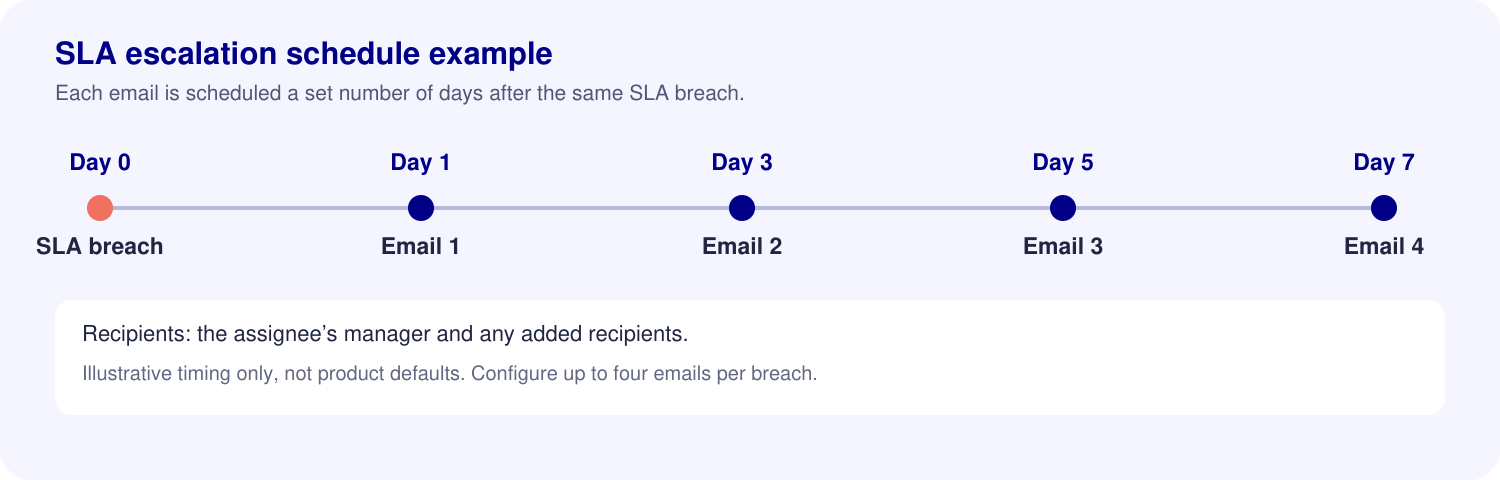
This helps teams establish a predictable follow-up process for missed SLAs and give managers visibility into issues that need attention.
Configuration details:
- A maximum of four escalation emails can be configured for each breach.
- Each email’s timing is defined relative to the SLA breach.
- Escalation email content is consistent across the organization. It is not customized separately for each contract.
Keep paused deliverables out of your main view
Paused work still needs to be available when you want to check it. Keeping it out of the main list can make it easier to focus on active deliverables.
The Show items On Hold toggle lets you choose when paused items appear in the Deliverables listing. It is available on the Draft and Pending tabs and is off by default.
- Toggle off: On Hold items remain hidden.
- Toggle on: On Hold items appear in the list.
You can keep the list focused on active work and bring paused items back into view whenever you need to review them.
Keep everyday work moving
Preview shared files without downloading them
Checking a shared attachment should be a small step in a conversation. Downloading a file each time adds another task and another local copy to manage.
Attachments shared in Collaborate can now open in a new browser tab without a download. This makes it easier to check a document or image while working with others on a contract.
Supported file types: Preview supports PDF and image files. Word documents (.docx) are not included in this release’s preview support.
Point users to your internal helpdesk
When an error message appears, users need to know where to get help. For many organizations, the first point of contact is their internal helpdesk.
A new organization-level setting lets admins configure the support email shown in error messages. Your organization can display its own helpdesk address in place of support@simplicontract.com.
This directs users to your organization’s chosen support route and gives admins one support address to manage across the organization.
Plan around Sunday November 22
Release 6.3 is planned for Sunday, 22 November 2026, from 4:30 to 8:00 AM UTC. SimpliContract, including sign-in, will be unavailable during this window.
The release runs inside the regular weekly maintenance window, so there is no extra downtime for this release.
| Activity | Date | Window |
|---|---|---|
| Release 6.3 deployment | Sunday, 22 November 2026 | 4:30 to 8:00 AM UTC |
| Weekly maintenance | Every Sunday | 4:30 to 8:00 AM UTC |
November 22 in your time zone
| Time zone | Local deployment window |
|---|---|
| UTC | Sunday, November 22, 4:30 to 8:00 AM |
| ET | Saturday, November 21, 11:30 PM to Sunday, November 22, 3:00 AM |
| PT | Saturday, November 21, 8:30 PM to Sunday, November 22, 12:00 AM (midnight) |
| IST | Sunday, November 22, 10:00 AM to 1:30 PM |
Get ready for the update
Share the maintenance window with your team before the rollout. If you plan to use SLA escalations, decide who should receive the notifications and when follow-up emails should be sent. Admins can also review which support address their organization wants to show in error messages.
For questions about Release 6.3 or how these updates apply to your team, contact your SimpliContract account team.